
Setting up your new gaming PC: the first hour
Your new gaming PC has arrived. Here is what to do in the first hour, step by step, so it runs at its best from day one. Take your time. None of it is hard.
1. Find a good spot for it
A gaming PC makes heat, and it needs air to keep cool.
- Leave space around it, especially at the back and the sides with vents. Do not push it hard against a wall.
- Do not stand it on carpet. Carpet blocks the vents underneath and lets in fluff. Put it on a desk, a hard floor or a flat board.
- Keep it out of cupboards with closed doors, and away from radiators and sunny windows.
- Keep drinks away from the top of the case.
2. Plug the monitor into the graphics card
This is the most common mistake we see, so it is worth a careful look.
The back of a gaming PC often has two sets of screen sockets. One set is near the top. That belongs to the motherboard. The other set is lower down, usually in a row lying sideways. That belongs to the graphics card.
Always plug the monitor into the lower set, on the graphics card. If you use the top sockets, the PC uses weak built-in graphics, or nothing at all. Games will run badly, or the screen will stay black. Many people think their new PC is broken when the cable is just in the wrong hole.
Use a DisplayPort or HDMI cable. The one that came with your monitor is usually fine.
3. Switch on and set the refresh rate
Plug in the power, keyboard and mouse, then switch on. Follow the Windows set-up screens if they appear.
If you have a high refresh screen, Windows may still be showing it at 60Hz. To change it:
- Right-click on the desktop and choose Display settings.
- Scroll down and click Advanced display.
- Under Choose a refresh rate, pick the highest number.
Not sure what refresh rate means? Read frame rate and refresh rate explained.
4. Run Windows Update
Go to Settings, then Windows Update, and click Check for updates. Let it install everything and restart when it asks. You may need to do this more than once. It keeps the PC safe and fixes known problems.
5. Update the graphics driver
A driver is the software that lets Windows talk to the graphics card. New ones come out often, and they can help new games run better.
- For an NVIDIA card, get NVIDIA's own app from the NVIDIA website.
- For an AMD card, get AMD's own software from the AMD website.
Only download from the maker's own website, not from other download sites. The app will tell you when a new driver is ready.
6. Install your game launchers
Most PC games are bought and played through a launcher. This is a free program that holds your games library. Popular ones include Steam, the Epic Games Store, Battle.net, the EA app and the Xbox app. Install the ones your games need and sign in with your own account.
Big games can take a long time to download, so start the biggest one first. If you are setting up a PC for a child, see our parent's guide for keeping it safe.
7. Back up what matters
Games can be downloaded again. Your photos, documents and school work cannot. Set up a backup early, to an external drive or an online storage service. Many games also save to the cloud through their launcher.
8. Keep the packaging for a while
Keep the box and the packing inside it. If the PC ever needs to travel back to the shop, or you move house, the original packaging protects it best.
Stuck?
If something will not work, call us on 01905 673738. We build and test our PCs on our own bench in Worcester, so we know them well. Once you are up and running, read how to keep it cool, clean and fast.
Not got one yet?
Picked from our shop's list by graphics card strength, then price. Prices update by themselves.
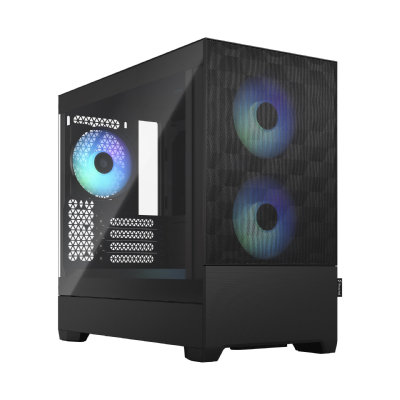
New build1440p gaming
Sandbox Serious Gamer 5 gaming PC
Ryzen 5 9600X + Radeon RX 9070 XT 16GB
Built for 1440p screens: Warzone, Fortnite, GTA V and Valorant at high settings, and new games like Cyberpunk 2077 play well.
- Processor
- Ryzen 5 9600X
- Graphics
- Radeon RX 9070 XT 16GB
- Memory
- 16GB DDR5
- Storage
- 1TB NVMe SSD
- Windows
- Windows 11 Home installed
£2,234.48
Built to order
Games this PC plays
- Fortnite Plays well
- Minecraft: Java Edition Plays well
- Minecraft (Bedrock Edition for Windows) Plays well
- Roblox Plays well
- VALORANT Plays well
- Counter-Strike 2 Plays well
- League of Legends Plays well
- EA SPORTS FC™ 26 Plays well
- Grand Theft Auto V Enhanced Plays well
- Marvel Rivals Plays well
Comes with an RGB case - you can swap it for a non-RGB case if you prefer.
Sold by Sandbox Computers, Worcester
New build1440p gaming
Sandbox Serious Gamer 7 gaming PC
Ryzen 5 7500X3D + Radeon RX 9070 XT 16GB
Built for 1440p screens: Warzone, Fortnite, GTA V and Valorant at high settings, and new games like Cyberpunk 2077 play well.
- Processor
- Ryzen 5 7500X3D
- Graphics
- Radeon RX 9070 XT 16GB
- Memory
- 32GB DDR5
- Storage
- 1TB NVMe SSD
- Windows
- Windows 11 Home installed
£2,540.33
Built to order
Games this PC plays
- Fortnite Plays well
- Minecraft: Java Edition Plays well
- Minecraft (Bedrock Edition for Windows) Plays well
- Roblox Plays well
- VALORANT Plays well
- Counter-Strike 2 Plays well
- League of Legends Plays well
- EA SPORTS FC™ 26 Plays well
- Grand Theft Auto V Enhanced Plays well
- Marvel Rivals Plays well
Comes with an RGB case - you can swap it for a non-RGB case if you prefer.
Sold by Sandbox Computers, Worcester
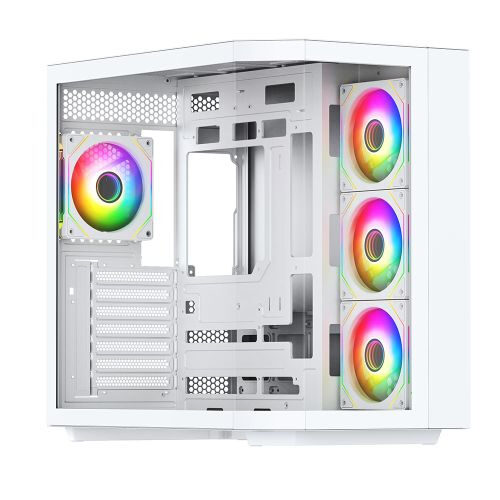
New build1440p gaming
Sandbox Serious Gamer 27 gaming PC
Core Ultra 7 265K + Radeon RX 9070 XT 16GB
Built for 1440p screens: Warzone, Fortnite, GTA V and Valorant at high settings, and new games like Cyberpunk 2077 play well.
- Processor
- Core Ultra 7 265K
- Graphics
- Radeon RX 9070 XT 16GB
- Memory
- 32GB DDR5 5600MHz
- Storage
- 1TB NVMe SSD
- Windows
- Windows 11 Home installed
£2,676.07
Built to order
Games this PC plays
- Fortnite Plays well
- Minecraft: Java Edition Plays well
- Minecraft (Bedrock Edition for Windows) Plays well
- Roblox Plays well
- VALORANT Plays well
- Counter-Strike 2 Plays well
- League of Legends Plays well
- EA SPORTS FC™ 26 Plays well
- Grand Theft Auto V Enhanced Plays well
- Marvel Rivals Plays well
Comes with an RGB case - you can swap it for a non-RGB case if you prefer.
Sold by Sandbox Computers, Worcester
Questions people ask
Where do I plug in my monitor on a gaming PC?
Into the graphics card. Its sockets are lower down on the back of the PC, usually in a row lying sideways. Do not use the sockets near the top, which belong to the motherboard. If you use those, games will run badly or the screen may stay blank.
Why does my new monitor only show 60Hz?
Windows often starts at 60Hz. Go to Settings, then System, then Display, then Advanced display, and pick the highest refresh rate in the list. Also check you are using a cable that supports it, plugged into the graphics card.
Do I need to install graphics drivers on a new PC?
It is a good idea. A driver is the software that lets Windows talk to the graphics card. New drivers come out often and can make games run better. Get them from NVIDIA or AMD's own app or website.
Should I keep the box my PC came in?
Yes, for a while. If the PC ever needs to come back to the shop, or you move house, the original box and packing keep it safe on the journey.